


Change Control
Managing change on complex projects means evaluating impact before you commit, maintaining a clear record of what changed and why, and promptly getting approved changes into the baselines. Dash360 supports your team’s processes and the tool to do all three.
- Scenario Planning with Cost Classes. Model proposed changes using pending cost classes before anything touches the approved baseline. Compare scenarios side by side to evaluate cost impact, resource implications, and schedule alignment, so decisions are informed before they are final.
- Baseline Integrity, By Design. Once the Performance Measurement Baseline is set, the approved budget is locked. No changes can be made to the baseline without an approved change request.
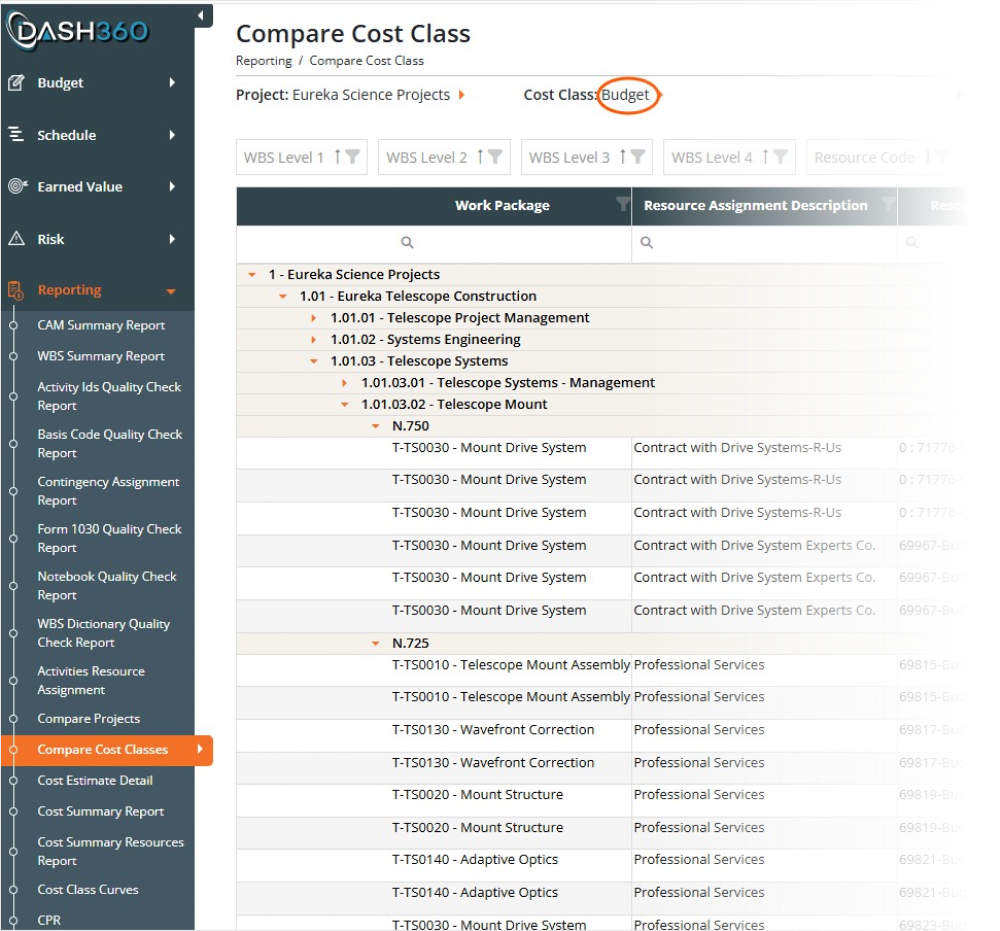
- Before and After Compare Reports. Once a change is approved, Dash360’s Compare Reports provide a clear side-by-side comparison of the original baseline and the revised values. Every delta is visible from the work package level down to the detailed resource assignments, giving you an audit-ready record of exactly what changed and by how much.
- Contingency Burndown Reporting. Track contingency consumption over time across the project. See how much has been drawn down, where it was applied, and the contingency balance.
- Fast Implementation of Approved Changes. Approved change requests are applied directly in Dash360, updating the baseline by copying over the scenario cost class.
Change Control
Create Cost Classes for Change Request Scenario Planning
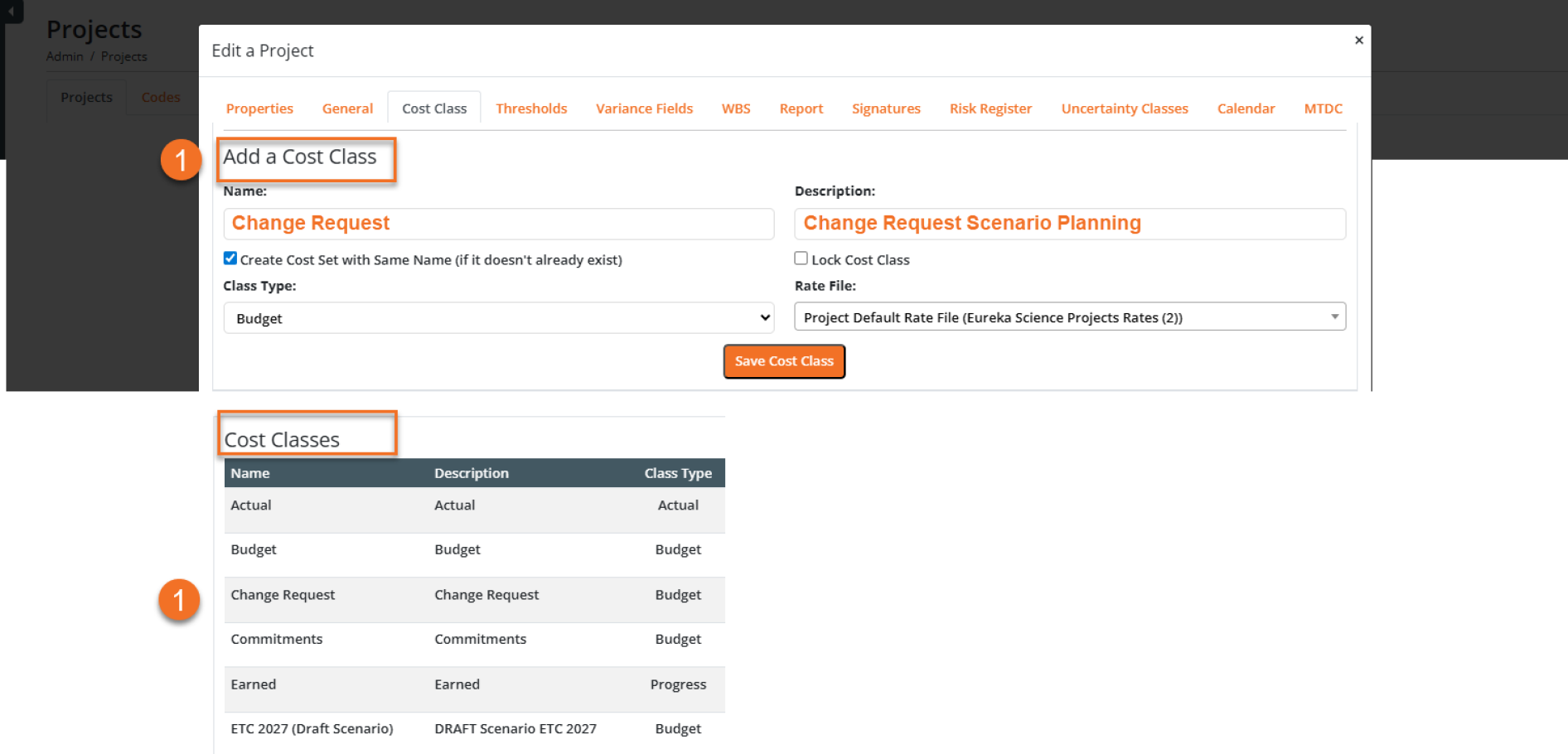
Scenario planning gives project teams a structured way to evaluate the cost impact of a proposed change before committing to it. Administrators create a dedicated cost class and build the revised time-phased budget profile in that isolated workspace without touching the approved baseline. When the scenario is ready, you can easily compare to the baseline budget to see the differences.
- Named cost classes keep multiple scenarios organized. Cost classes can be created for individual change requests, making it easy to track which budget revision belongs to which request if you have multiple changes in work at the same time.
- Work freely without baseline risk. All revisions happen in the new cost class. The approved budget is never in play until a change is formally approved.
Copy Cost Class to Seed Your Scenario
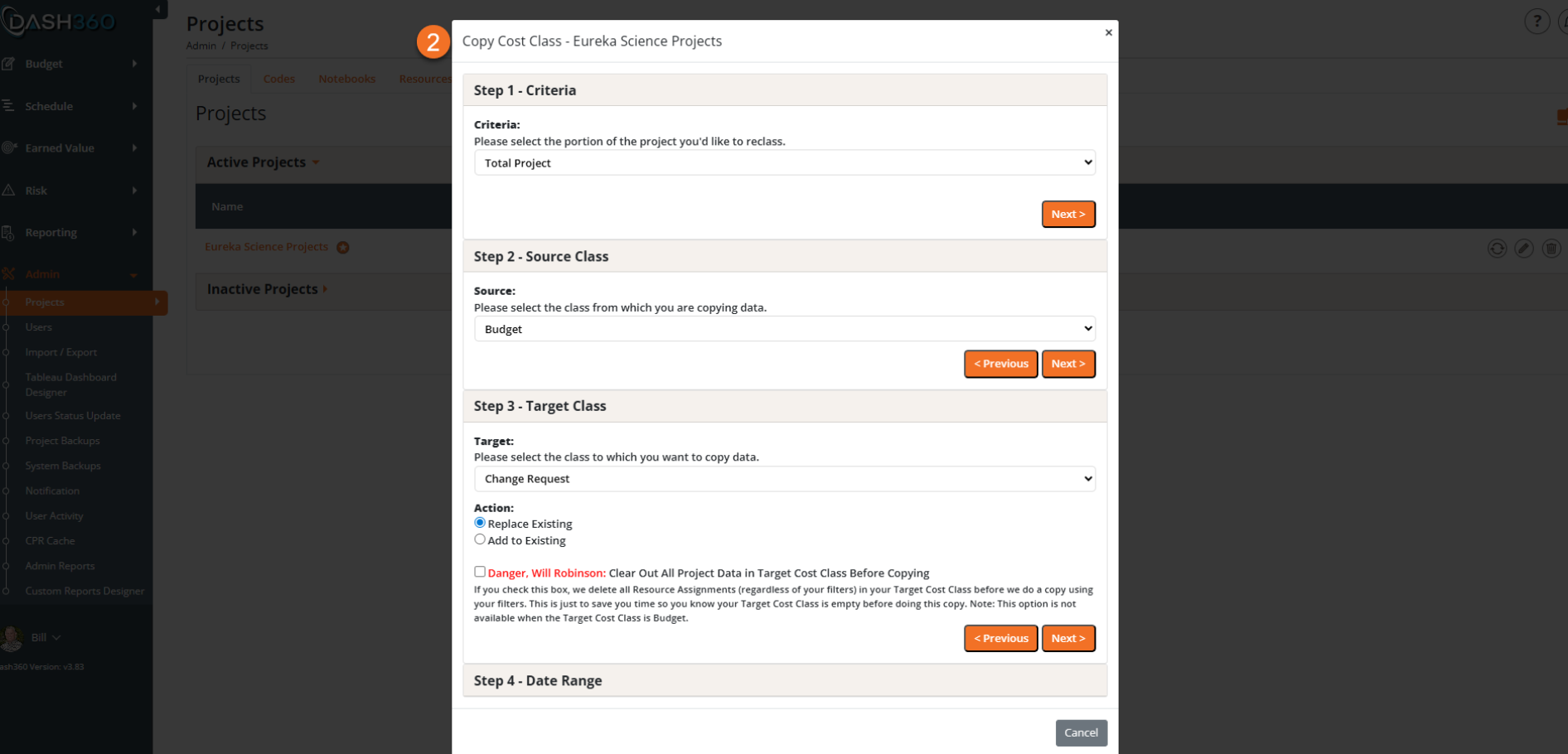
The Copy Cost Class wizard gives the team an immediate head start by pulling existing budget data into the new cost class in a few guided steps, so revision work begins from the right foundation rather than a blank slate.
- Choose your scope. Copy the total project or target specific work packages, so the scenario contains exactly the data in play for the proposed change.
- Select source and target. Pick the class to copy from and the class to copy into. The approved Budget flows into the Change Request cost class, ready for revision.
- Replace or add to existing data. Control whether the copy overwrites what is already in the target class or adds to it, keeping scenario management flexible as plans evolve.
Copy Cost Class to Seed Your Scenario
The Copy Cost Class wizard gives the team an immediate head start by pulling existing budget data into the new cost class in a few guided steps, so revision work begins from the right foundation rather than a blank slate.
- Choose your scope. Copy the total project or target specific work packages, so the scenario contains exactly the data in play for the proposed change.
- Select source and target. Pick the class to copy from and the class to copy into. The approved Budget flows into the Change Request cost class, ready for revision.
- Replace or add to existing data. Control whether the copy overwrites what is already in the target class or adds to it, keeping scenario management flexible as plans evolve.
Screenshot Placeholder
Sample copy
Screenshot Placeholder
Sample copy
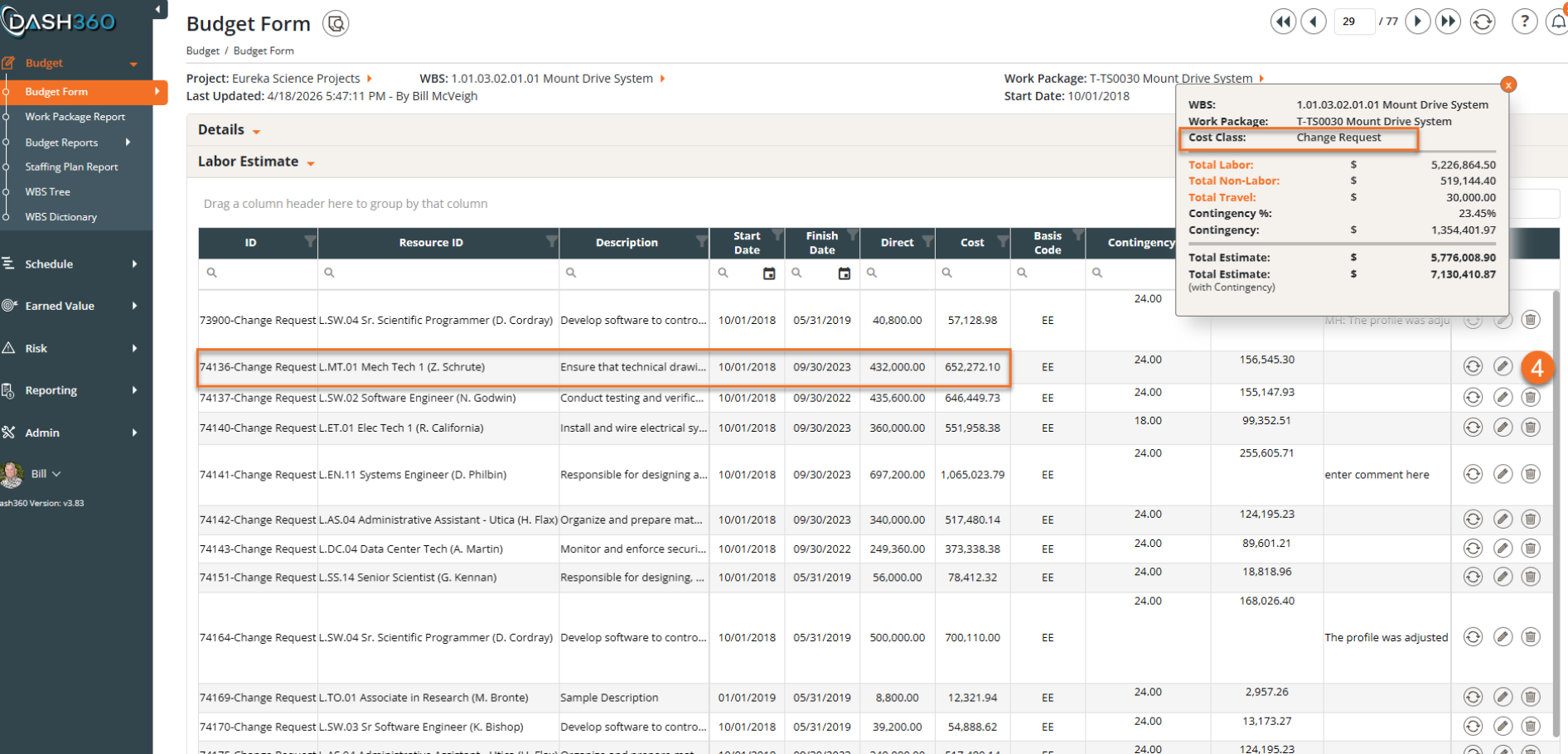
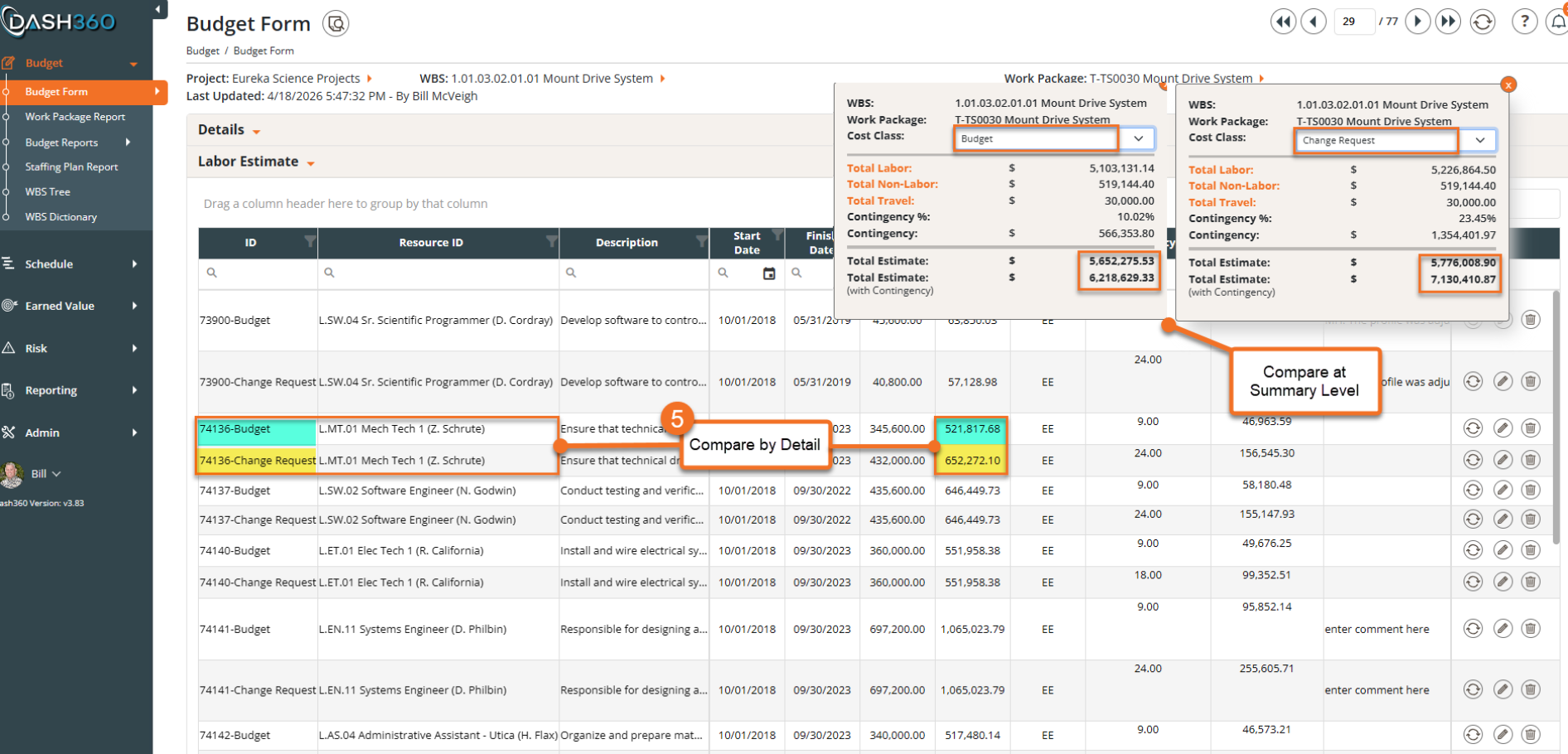
Revise With Confidence In The Change Request Cost Class
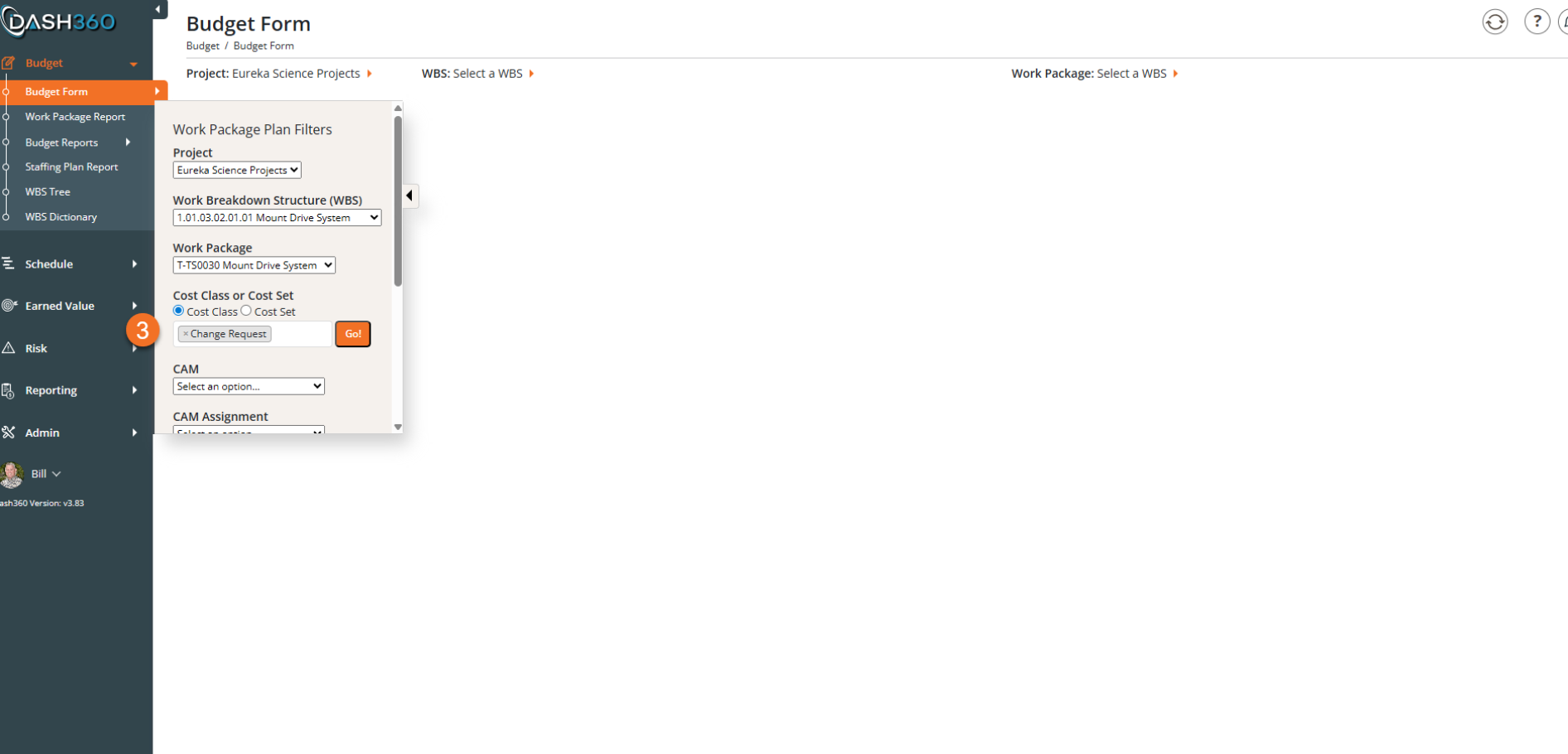
Every revision made to support a change request stays completely isolated from the approved baseline. Filtering the Budget Form to the Change Request cost class means the team can work through resource and cost adjustments freely, with full confidence that nothing touches the approved budget until the change is formally approved.
- Filter to the exact scope of the change. Select the WBS element and work package affected, then set the cost class to Change Request before opening the form. Only what needs to change gets touched.
- Full budget form capability, zero baseline risk. Every resource and dollar amount modified in this view belongs to the change request cost class. The approved baseline is locked and protected throughout.
- Work at any level of the WBS. Scope the Budget Form to a single work package or a full WBS element, depending on how broadly the proposed change reaches across the project.
See the Full Cost Impact as You Build the Change Request
Editing resource assignments in the Change Request cost class gives the team complete visibility into the cost impact of a proposed change as it takes shape. Adjust labor, non-labor, and travel at the assignment level, and the running totals update immediately, so the revised estimate is always current before the request is submitted.
- Full resource-level detail. Every assignment in the work package is visible and editable, with direct costs, contingency, and basis codes all accessible in a single grid.
- Running totals update as you work. The summary panel shows current Labor, Non-Labor, Travel, Contingency, and Total Estimate values, so the cost impact of each revision is visible in real time.
- Basis of Estimate documentation attached where it lives. Supporting files for the BoE can be attached directly to the work package, keeping estimate justification and cost data in one place for reviewers and auditors.
- Comments captured at the assignment level. Notes and comments can be entered directly on individual resource rows, keeping the rationale for each change close to the data.
- Cost class confirmed in view. The summary panel displays the active cost class, so there is never any question about which version of the budget is being edited.
Time-Phased. Fully Burdened. Ready to Review.
The Resource Assignment time-phased editor puts full control over cost distribution in one place. Adjust any period, and the fully burdened cost, including direct, fringe, indirect, and escalation, recalculates automatically across the entire profile.
- Update the profile by period. Edit FTE, hours, and direct costs month by month to reflect the revised scope and schedule the change request requires.
- Spread options built in. Choose between an existing profile spread or a linear spread, so cost distribution matches how the work will actually be performed.
- Fully burdened calculated cost updates in real time. Percent, FTE, hours, direct, escalation, fringe, indirect, and subtotal rows are all displayed in the same grid, so the complete cost impact of every revision is visible as you work.
- Cost class confirmed in the header. The active cost class is displayed at the top of the editor, so every change is clearly tied to the Change Request scenario, not the baseline.
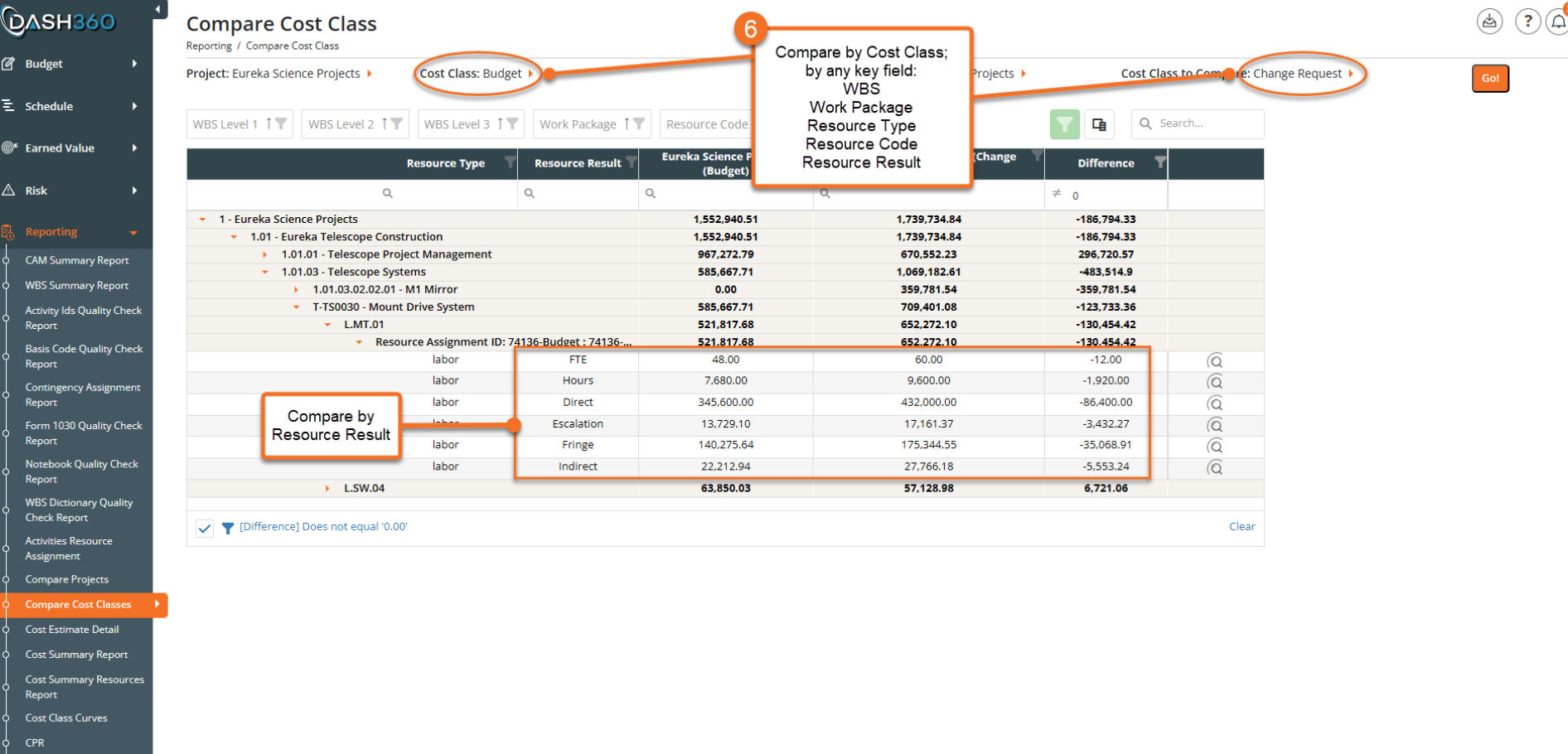
See the Complete Impact of Every Change Request
The Compare Cost Classes report puts the approved Budget and the Change Request scenario side by side, with every difference calculated and displayed at the resource result level. From the project summary down to individual FTE, hours, direct, escalation, fringe, and indirect rows, the full impact of the proposed change is visible and defensible before anything is submitted.
- Compare any two cost classes. Select the baseline and the change request scenario as the two classes to compare, and the report builds the side-by-side view instantly.
- Drill down to any level. Organize and filter the comparison by WBS, work package, resource type, resource code, or resource result to pinpoint exactly where the differences live.
- Every delta calculated. The Difference column shows the variance between the two cost classes at every level of the hierarchy, so reviewers can follow the numbers from project total down to a single resource assignment.
- Filter to only what changed. The built-in difference filter removes rows where nothing changed, keeping the report focused on the work packages and resources that matter.
Screenshot 2
Sample 2
Screenshot 3
Sample 3
Screenshot 4
Sample 4
Staffing Plan Report: Know Who You Need and When
View your full FTE distribution year by year or month by month, broken out by individual resource across the project timeline. Spot over-allocations before they become problems, cross-reference your staffing plan against the schedule to make sure the two align, and share a clean, exportable workforce picture with sponsors and the Project Management Team.
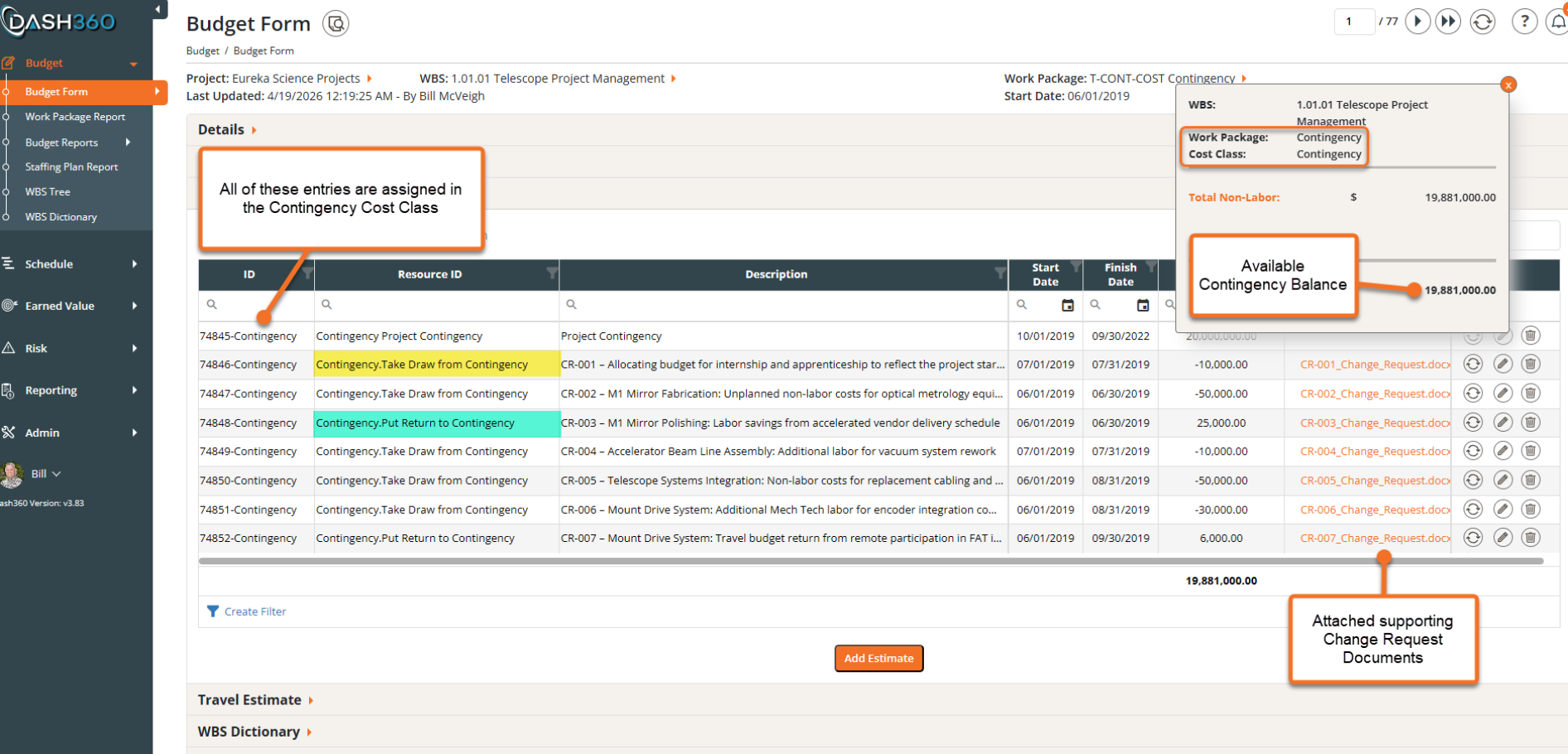
Full Lifecycle Contingency Management
Dash360 supports the full contingency lifecycle, from bottoms-up parametric estimating at the work package level and Monte Carlo analysis driven by your Risk Register, to a structured, auditable register for tracking every draw and return against the approved contingency balance.
- Dedicated Cost Class. Contingency lives in its own cost class, keeping it cleanly separated from direct work package budgets.
- Running Balance. The register works like a checkbook, with draws and returns posting against the opening contingency balance to show exactly what remains available at a glance.
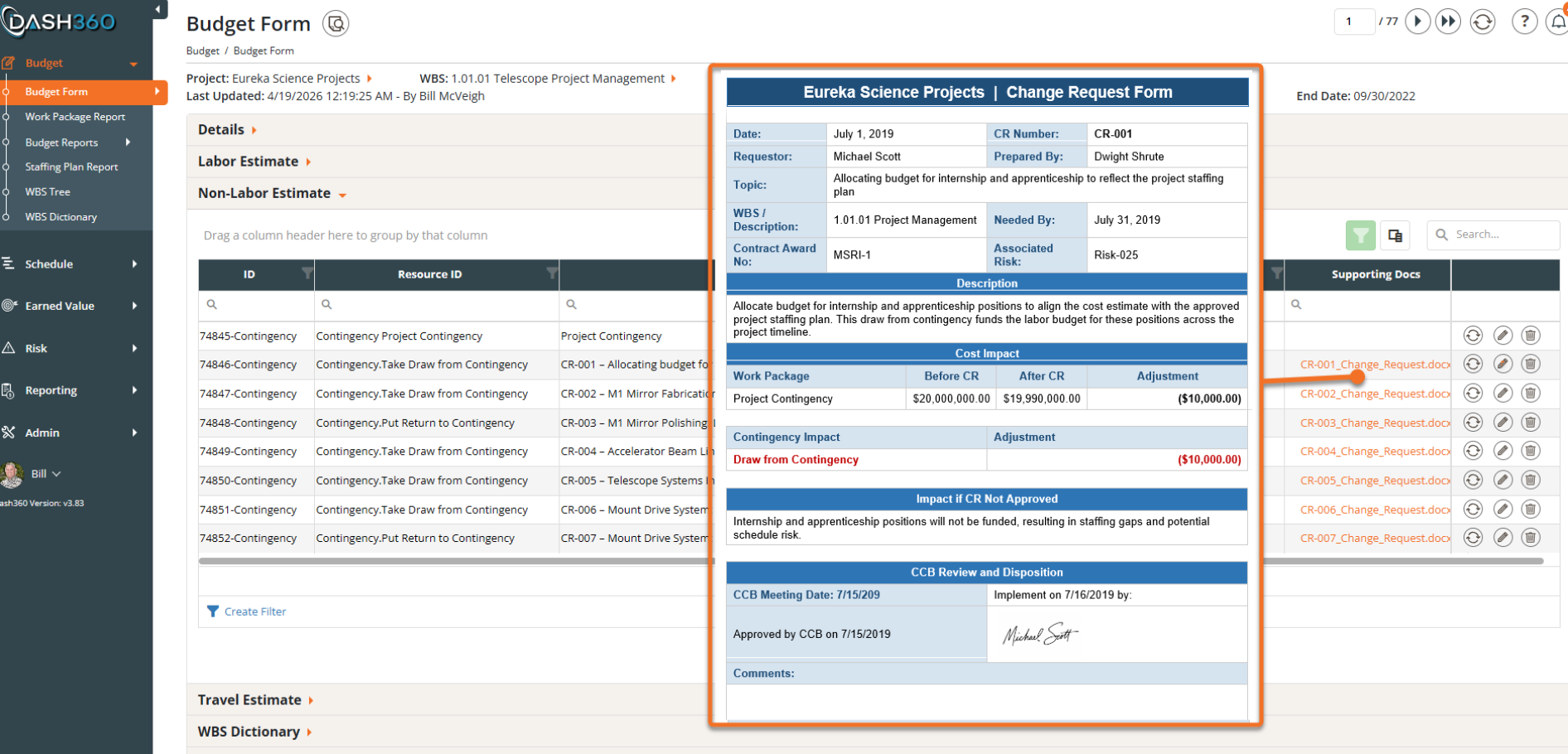
- Attached Change Request Documents. Every entry links directly to its supporting change request file, keeping approvals and justifications one click away.
Sample Screenshot 2
Sample copy 2