
Streamline cost estimates and budgets with collaborative tools and resource assignments.
Real-time schedule viewing, analysis, and status updates without editing.
Monitor progress and performance with integrated EVM metrics and reports.
Risk Register, heat maps, Monte Carlo simulations, and schedule risk analysis.
Manage changes with scenario planning, workflows, and impact assessments.
Dozens of reports. Multiple layouts, charts, graphs, and pivot-style analysis, all built in.
More than software. Expert project controls guidance, grounded in decades of hands-on experience across projects of every size and complexity.
From PMCS implementation to project closeout, we train your team the same way we train our own, to be experts.
Real projects. Real results. What worked, what didn't, and what we learned.
When every dimension of your project lines up, the answer is yes. We help you get there.

Trusted by the World’s Most Complex Projects
We’ve Been Where You’re Going
Access on-demand sessions on project controls, EVM, and best practices for complex projects.
Read insights on Dash360 solutions and project management for big science and technology endeavors.
Tune into expert discussions on building high-performing teams and achieving project success.
Stay informed with the latest announcements and updates from Dash360.
Download detailed guides on cost estimating, risk management, and project lifecycle strategies.
Get to know the experts driving Dash360's innovative project management solutions.
Join talented professionals working on groundbreaking projects
From 1980s project controls pioneers to modern innovators in complex project management.
Reach out for inquiries, support, demos, or partnerships

Meet the Dash360 Team
Streamline cost estimates and budgets with collaborative tools and resource assignments.
Real-time schedule viewing, analysis, and status updates without editing.
Monitor progress and performance with integrated EVM metrics and reports.
Risk Register, heat maps, Monte Carlo simulations, and schedule risk analysis.
Manage changes with scenario planning, workflows, and impact assessments.
Dozens of reports. Multiple layouts, charts, graphs, and pivot-style analysis, all built in.
More than software. Expert project controls guidance, grounded in decades of hands-on experience across projects of every size and complexity.
From PMCS implementation to project closeout, we train your team the same way we train our own, to be experts.
Real projects. Real results. What worked, what didn't, and what we learned.
When every dimension of your project lines up, the answer is yes. We help you get there.
Trusted by the World’s Most Complex Projects
We’ve Been Where You’re Going
Access on-demand sessions on project controls, EVM, and best practices for complex projects.
Read insights on Dash360 solutions and project management for big science and technology endeavors.
Tune into expert discussions on building high-performing teams and achieving project success.
Stay informed with the latest announcements and updates from Dash360.
Download detailed guides on cost estimating, risk management, and project lifecycle strategies.
Get to know the experts driving Dash360's innovative project management solutions.
Join talented professionals working on groundbreaking projects
From 1980s project controls pioneers to modern innovators in complex project management.
Reach out for inquiries, support, demos, or partnerships
Meet the Dash360 Team
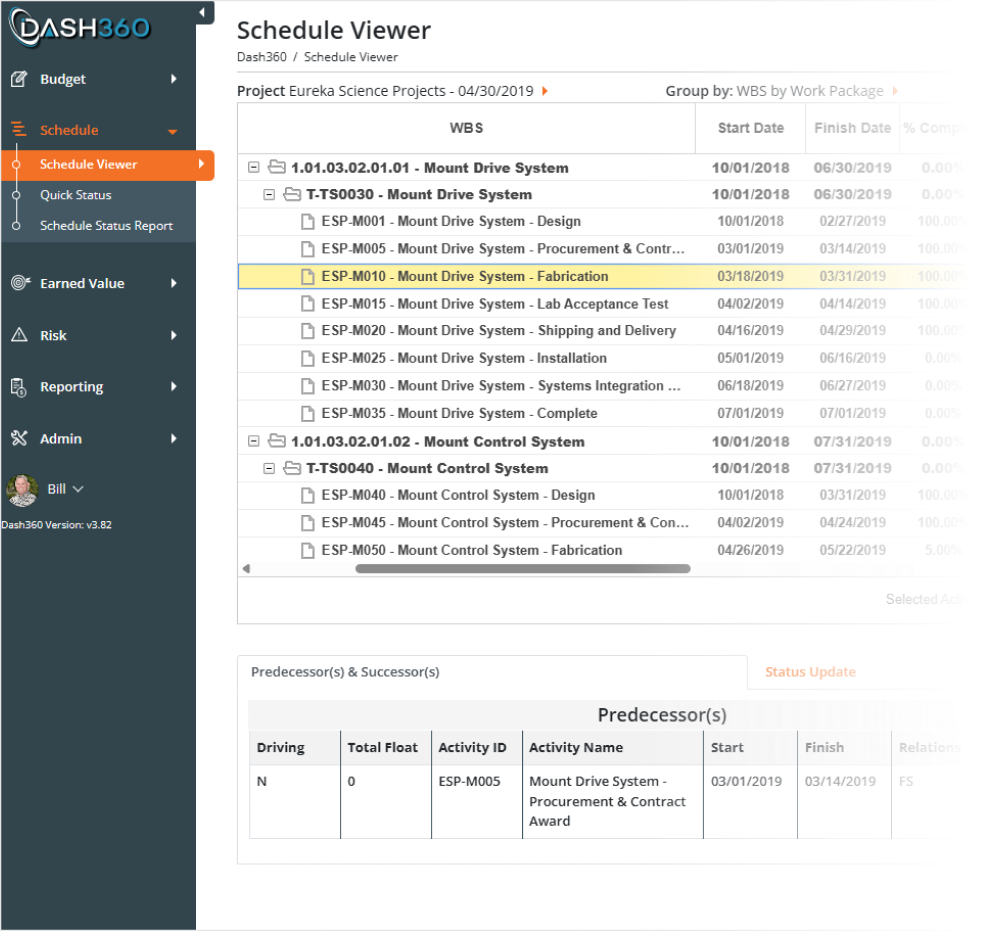
When your schedule lives in Dash360, your team can view activities, track progress, and update percent complete right alongside the budget and resource data that drives your cost performance. Whether your schedule originates in P6, MS Project, or another tool, a simple Excel-based import brings it in and an export sends updates back.
One place for all to review the schedule. One place to collect status.
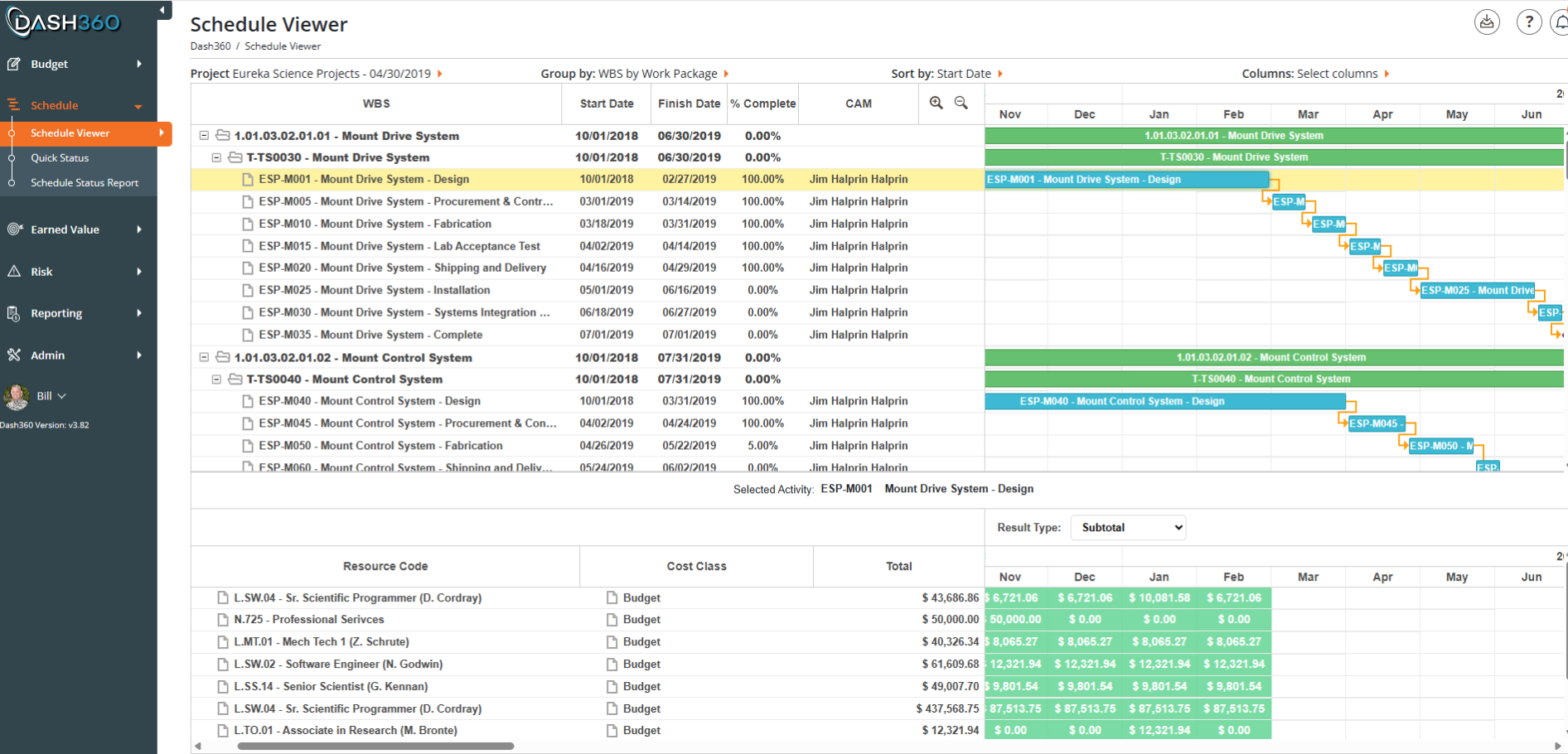
The Schedule Viewer displays the project schedule as a Gantt chart, grouped by WBS and work package, with start date, finish date, percent complete, and CAM assignment visible for each activity. Selecting an activity opens a time-phased resource detail panel below, showing budget by resource code, cost class, and monthly spend.
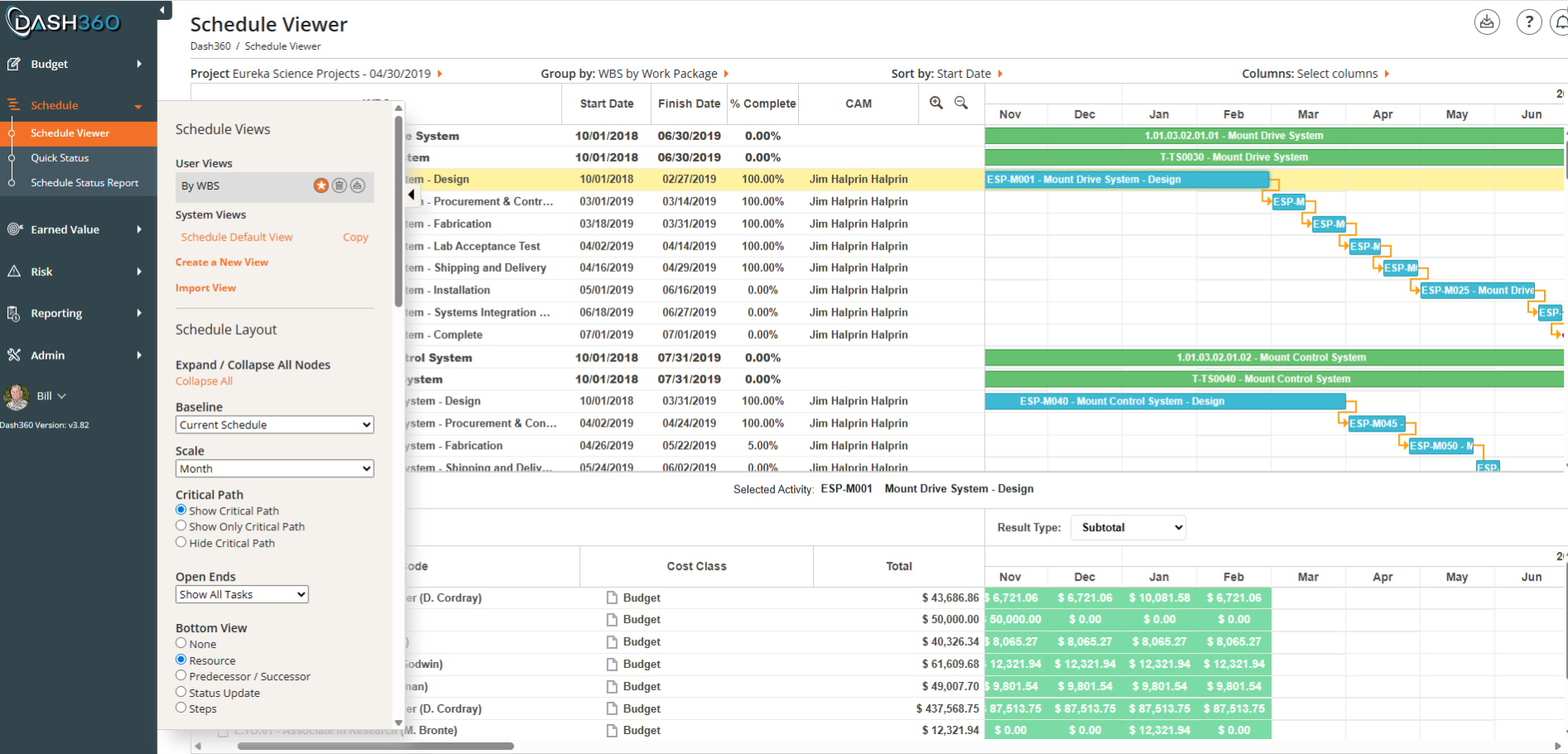
The same Schedule Viewer with the configuration panel open. Users can save and manage custom views, switch between baseline schedules, adjust the timescale, toggle critical path display, control open ends visibility, and select what appears in the bottom panel, including resources, predecessor/successor relationships, status update, or steps.
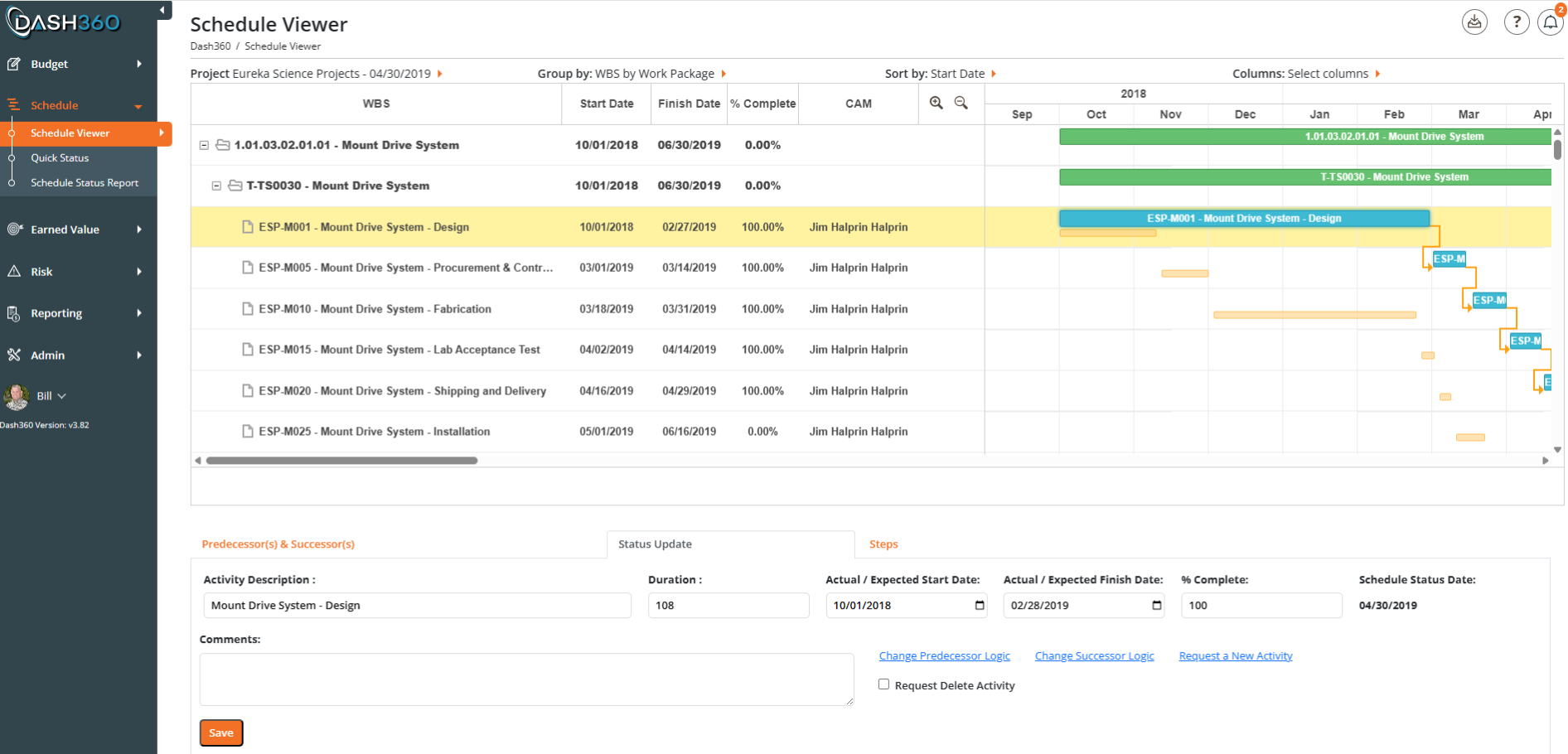
The Schedule Viewer with the bottom panel set to the Status Update tab for a selected activity. Users can record actual and expected start and finish dates, duration, percent complete, and status date, and add comments. Links to change predecessor and successor logic, or request a new activity, are accessible directly from this panel.
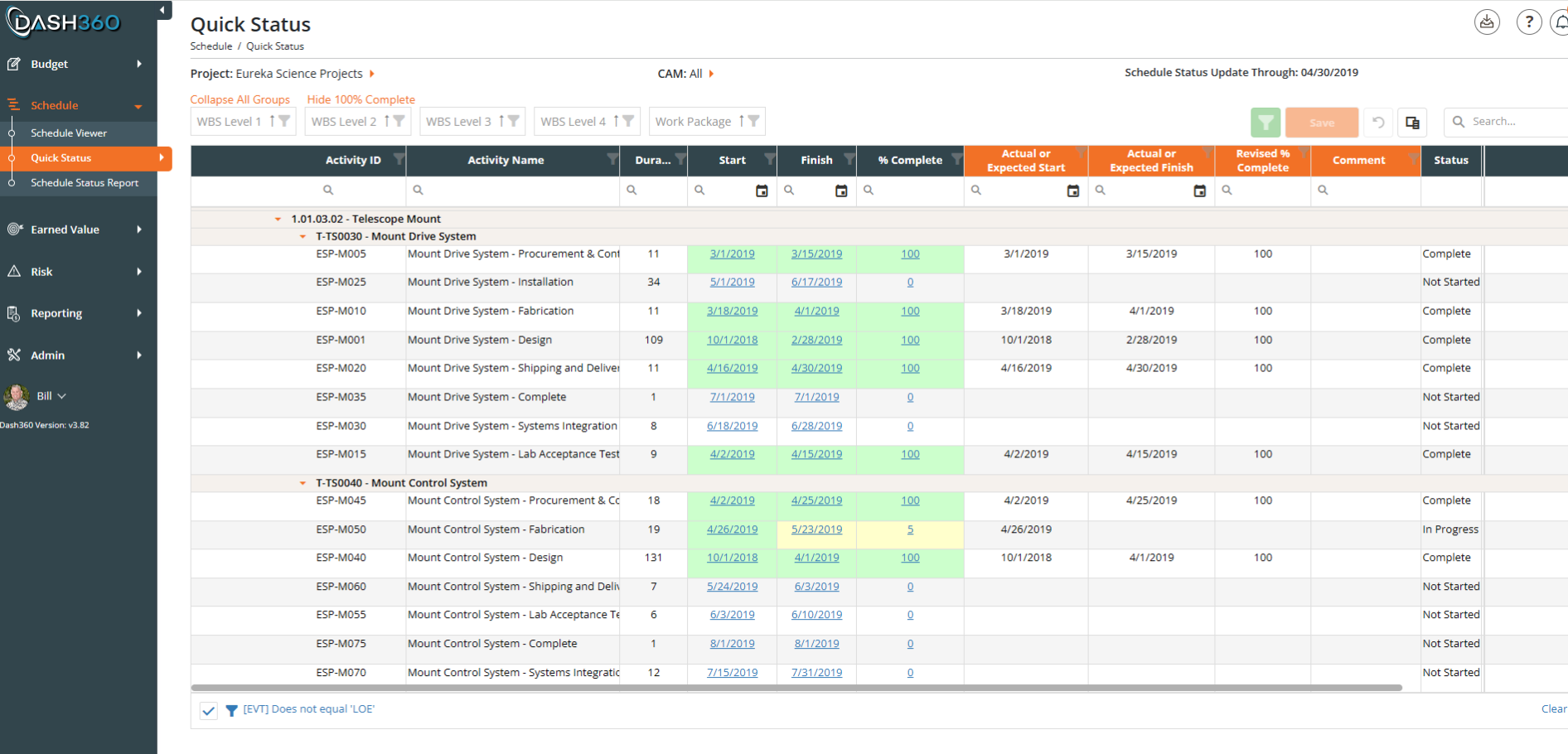
Quick Status is a streamlined tabular view designed to make schedule updates fast. Clicking a scheduled date instantly populates the actual start or finish field, which can then be adjusted as needed. CAMs update percent complete and add comments directly in the grid, with color coding showing what is complete, in progress, or not started. WBS level filters and a hide-completed toggle keep the working list focused
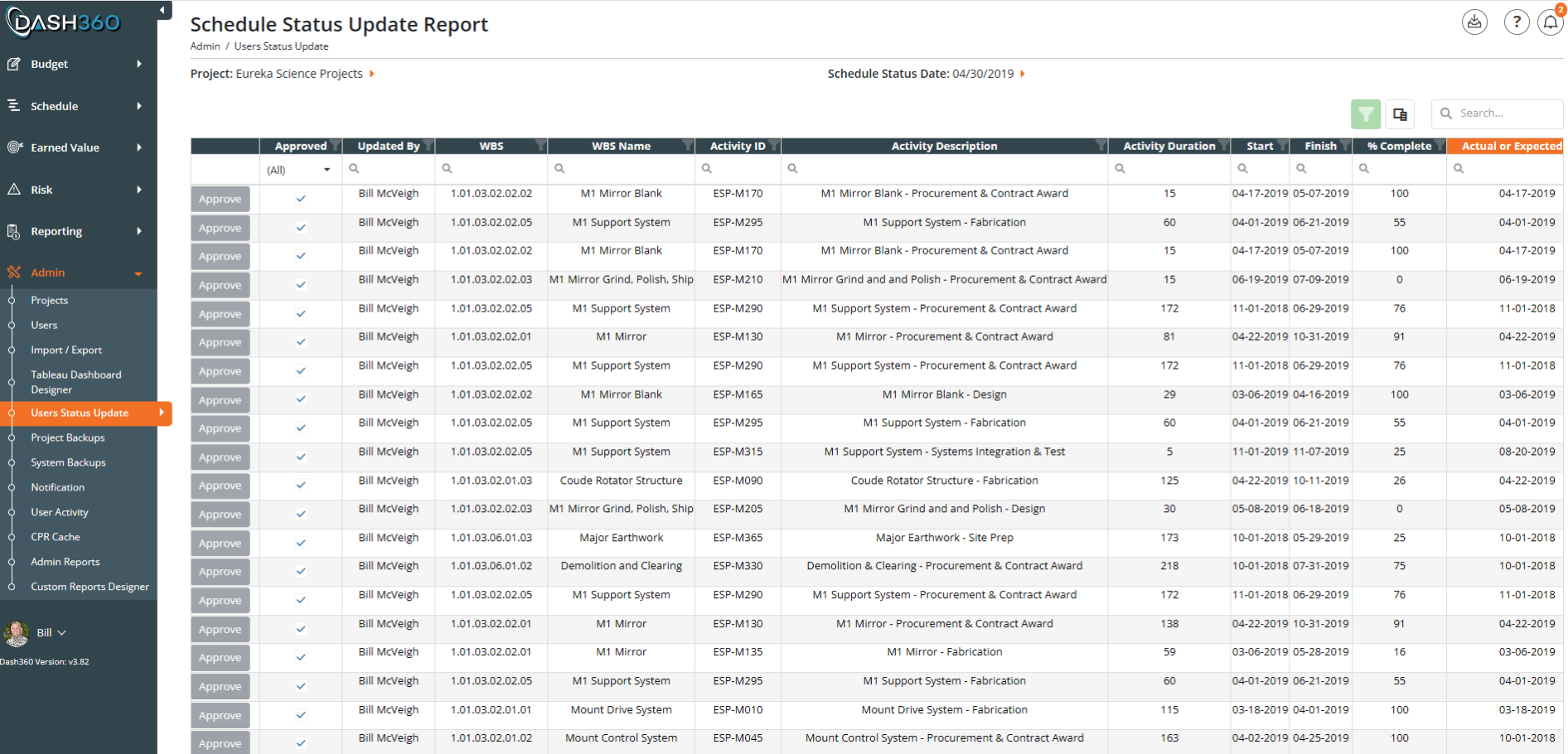
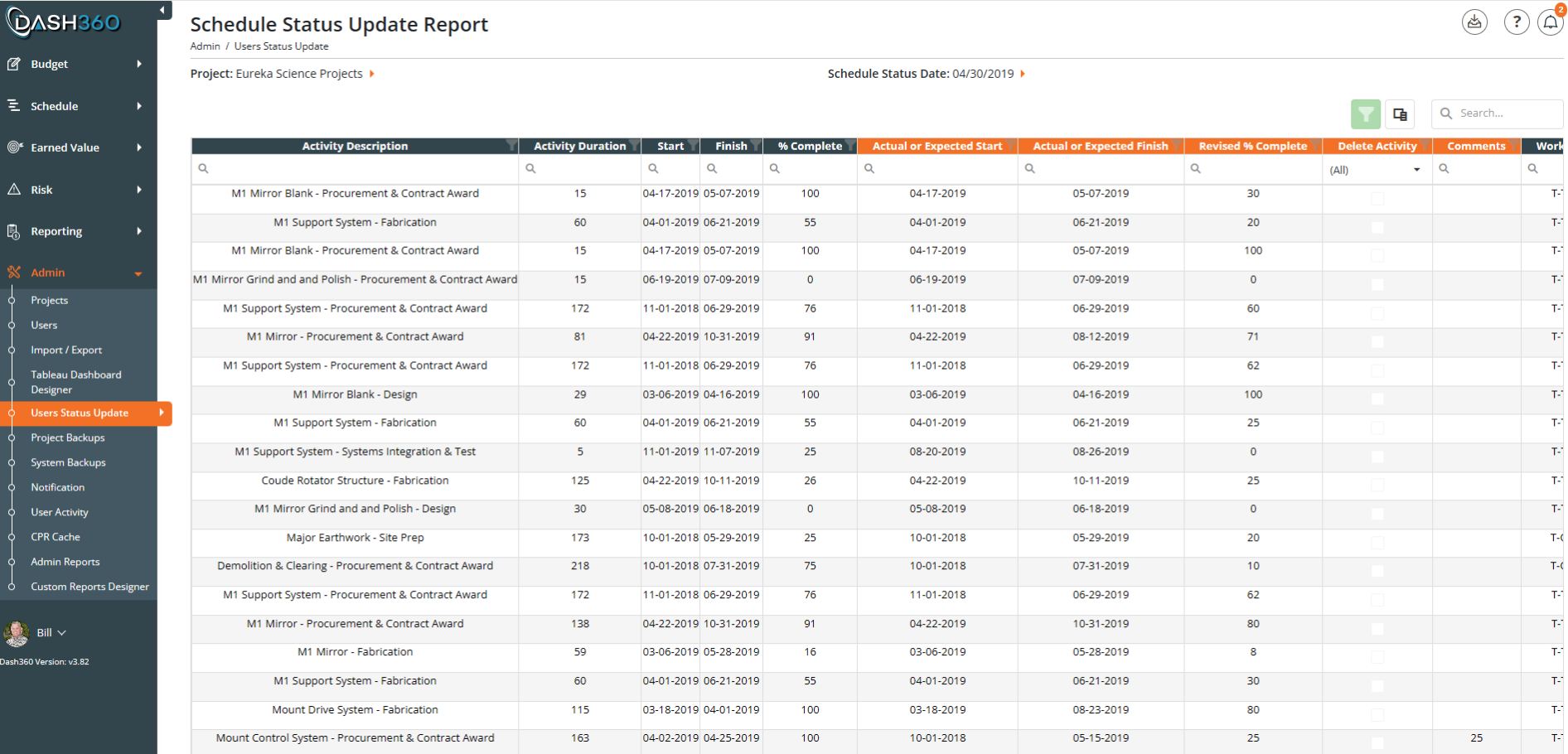
The Schedule Status Updates page is where administrators review, approve, or delete the schedule updates submitted by Control Account Managers through the Quick Status page.
Each row shows one pending submission: the CAM’s proposed changes to a single activity alongside the current schedule values, so you can compare before approving. Approved changes are immediately written back to the live schedule.
Copyright © 2026 Dash360 – All Rights Reserved